Social Media Made Simple
First Flip Challenge / ISN Step-by-Step Guide
Step 1 of 20
Start Here
Social Media Made Simple
You don't have to learn everything at once. Start with one type of post, follow the steps, and practice from there.
Your screen may look slightly different depending on your phone or app version.
Instagram Profile
Which Kind of Post Should I Choose?
Regular Post
A photo or update you want to keep on your profile.
Carousel
One Post containing several photos people can swipe through.
Story
A quick, casual update that usually disappears after 24 hours.
Reel
A short video.
If you're unsure, start with a regular post and keep going.
You can learn the rest as you practice.
Post • Story • Reel
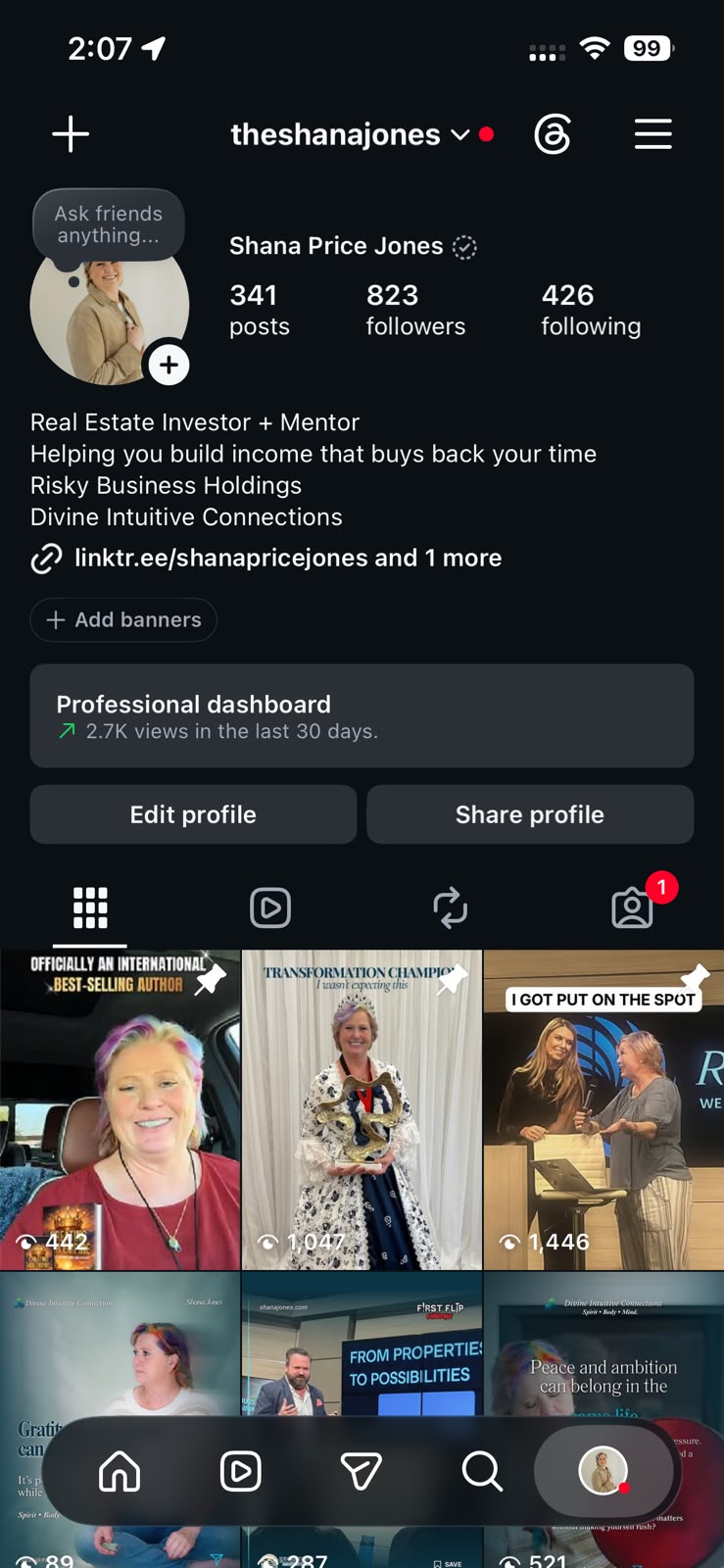
Start an Instagram Post
- Open Instagram.
- Go to your profile.
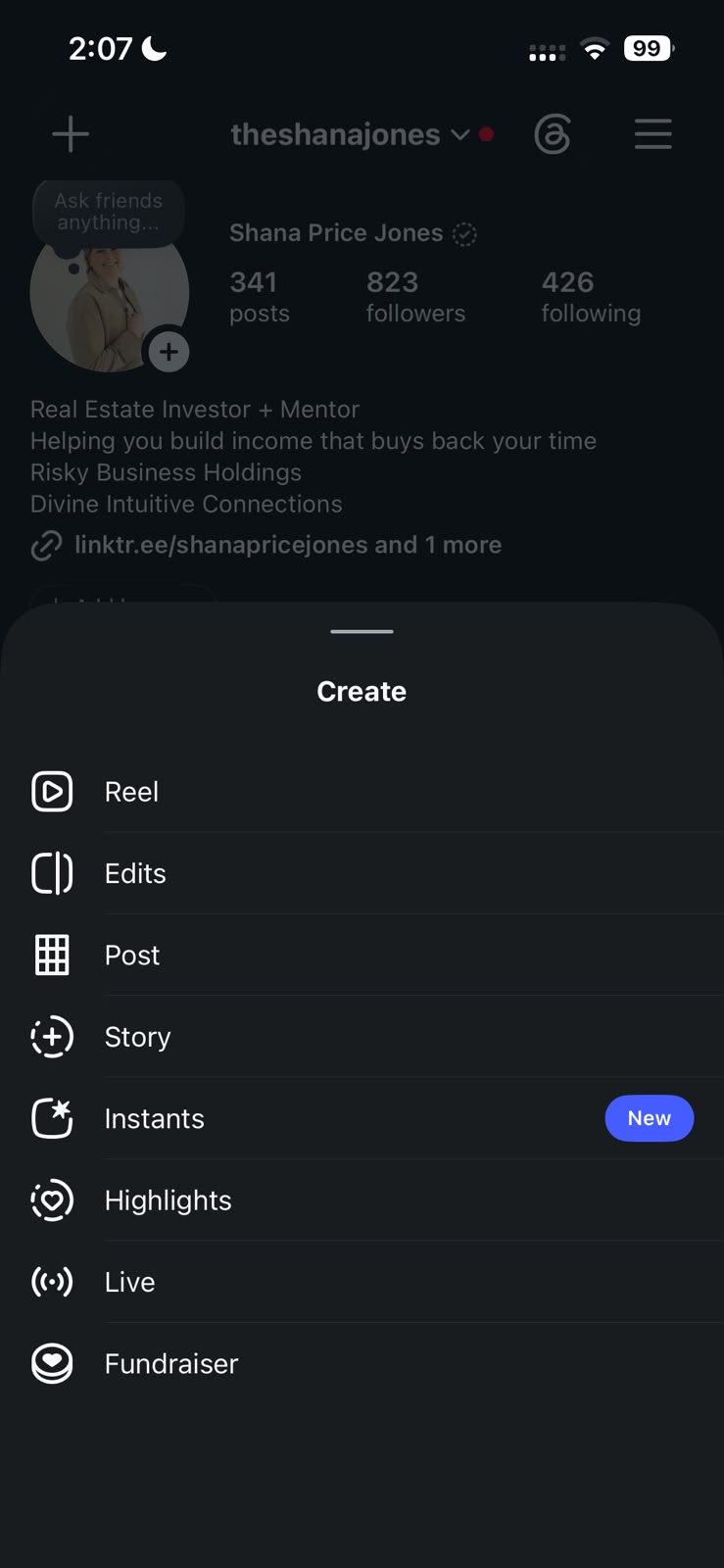
- Tap the + button.
- Choose Post.
Tap +
Choose Post
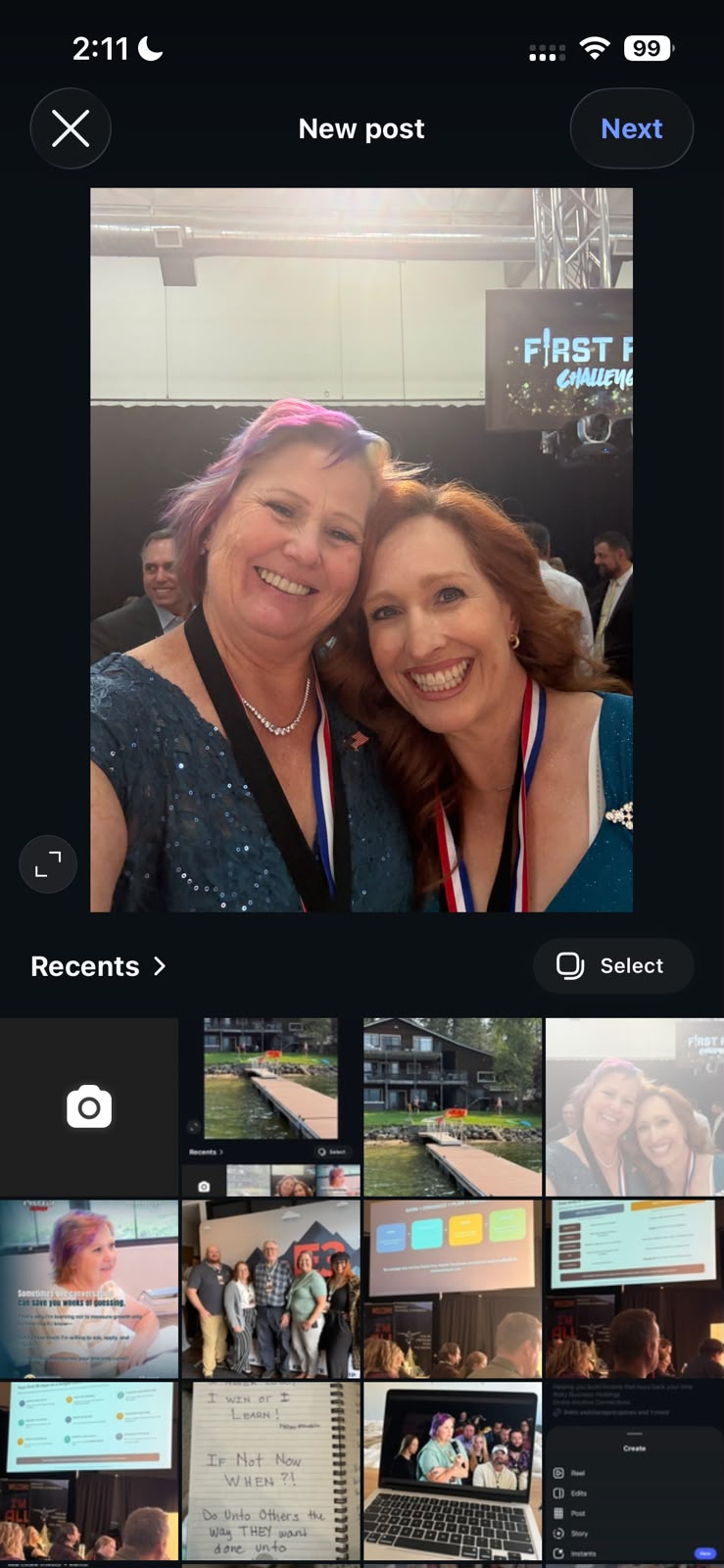
Choose Your Photo
- Choose a photo from your phone.
- Confirm the photo you want to use.
- Tap Next.
Select Your Photo
Add Your Caption
- Find the caption field.
- Type your caption or paste one you've already written.
- Keep the caption relevant to what you're sharing.
Write a Caption
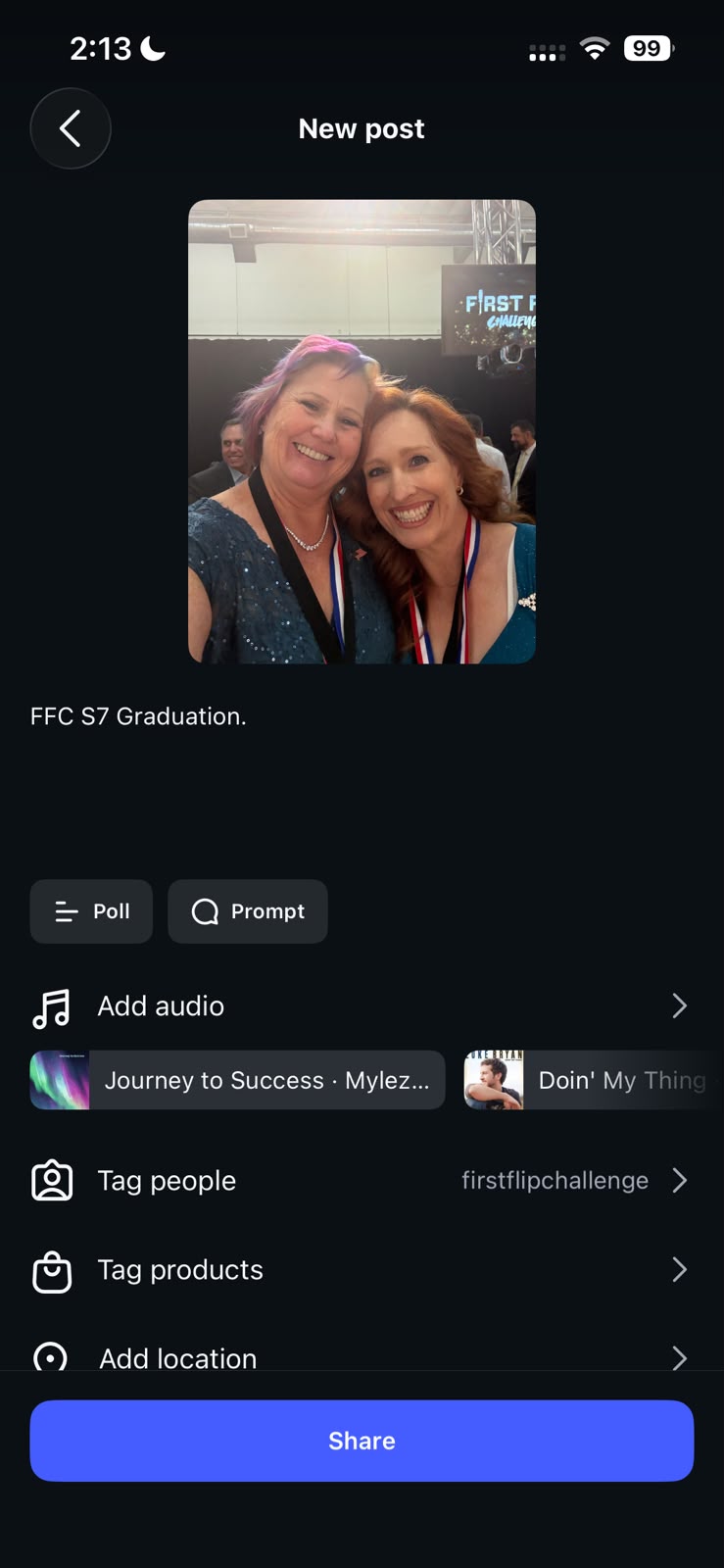
Tag People
- Tap Tag People.
- Search for the person or account.
- Select the correct account.
- For First Flip Challenge content, tag the appropriate FFC / ISN accounts when relevant.
Tap Tag People
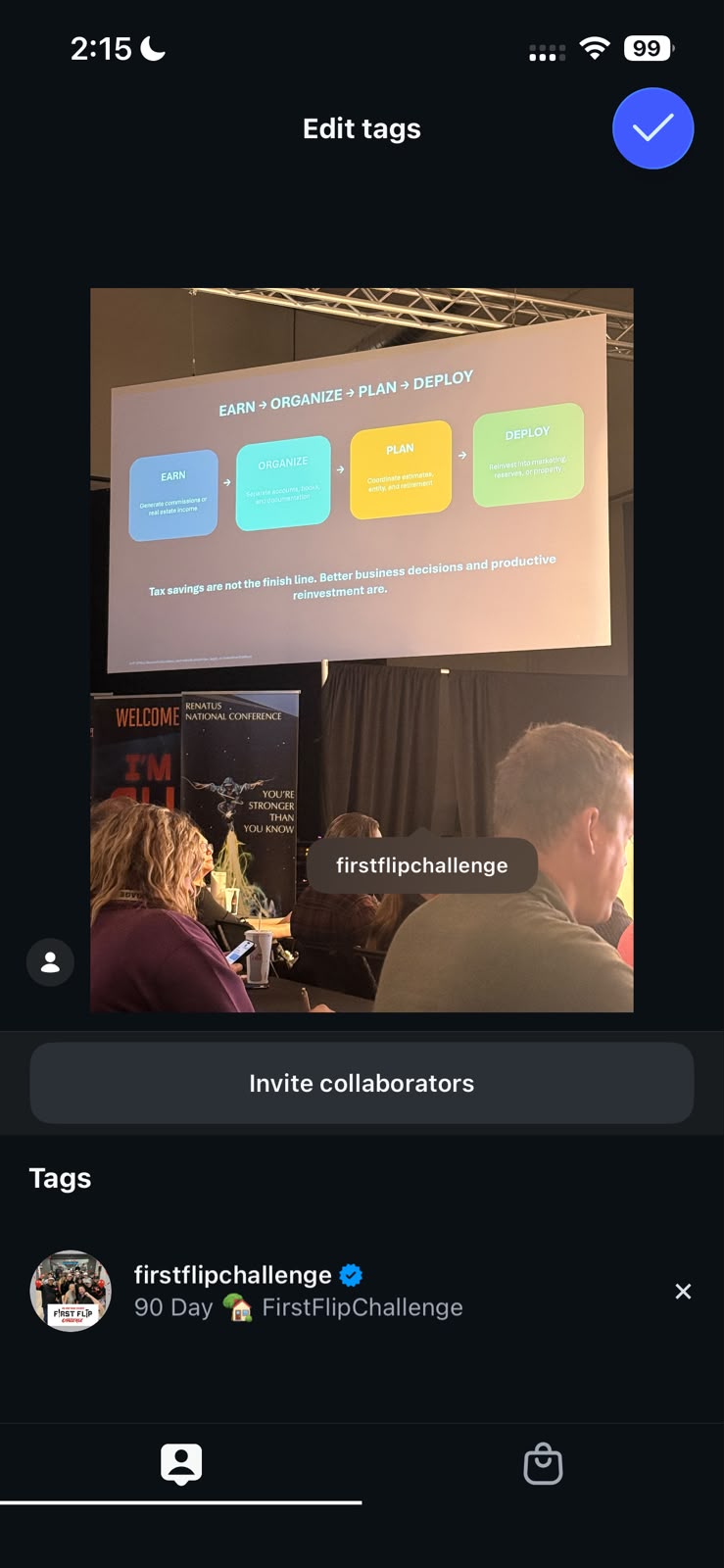
Invite a Collaborator
- Open Tag People.
- Tap Invite Collaborators.
- Search for the account you want to invite.
- Select the account.
- The other person will receive a collaboration invitation.
If accepted, the post can also appear on the collaborator's profile.
Invite Collaborators
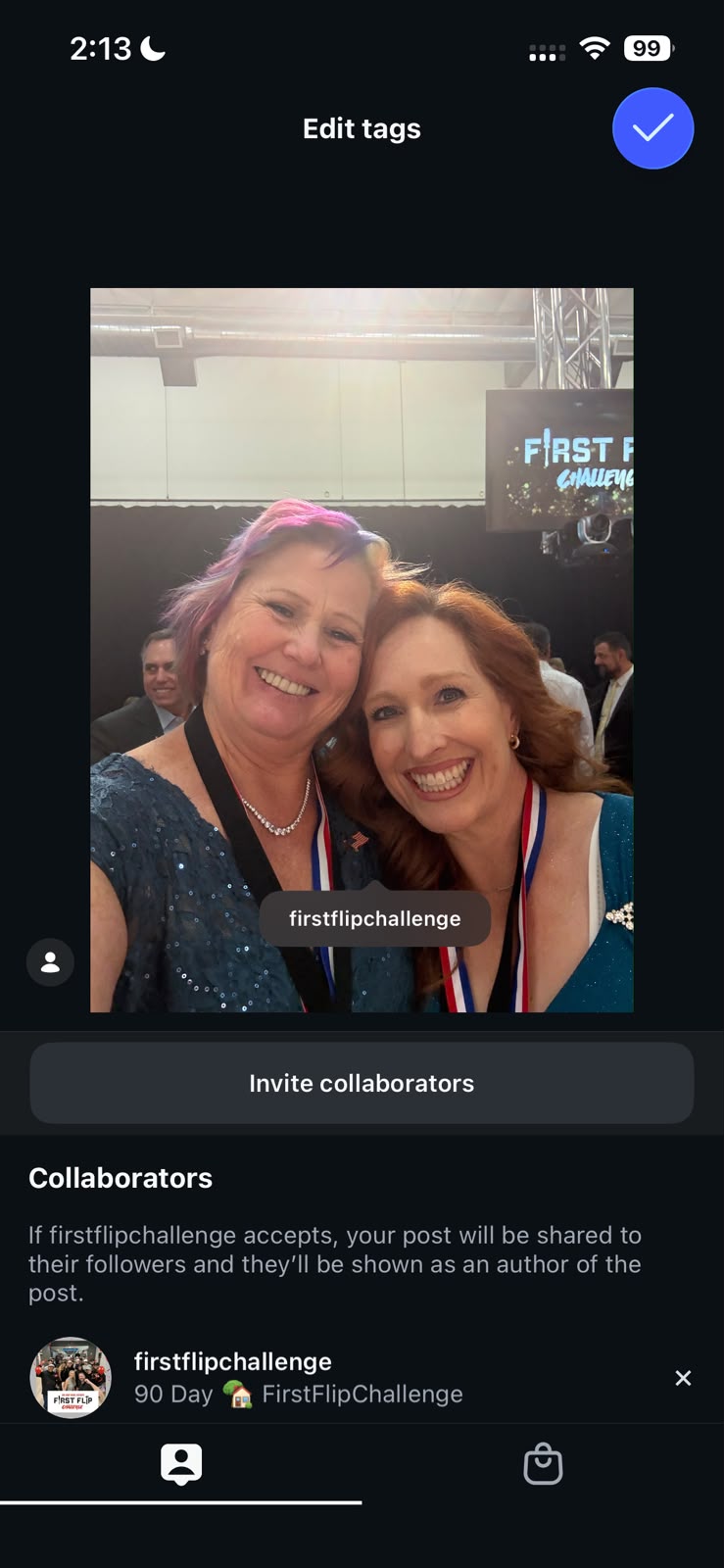
Create a Carousel
A carousel is one Instagram Post containing several photos.
- Start a new Post.
- Tap Select Multiple.
- Choose your photos.
- Select them in the order you want people to see them.
- Continue with the normal caption and posting steps.
Select Multiple
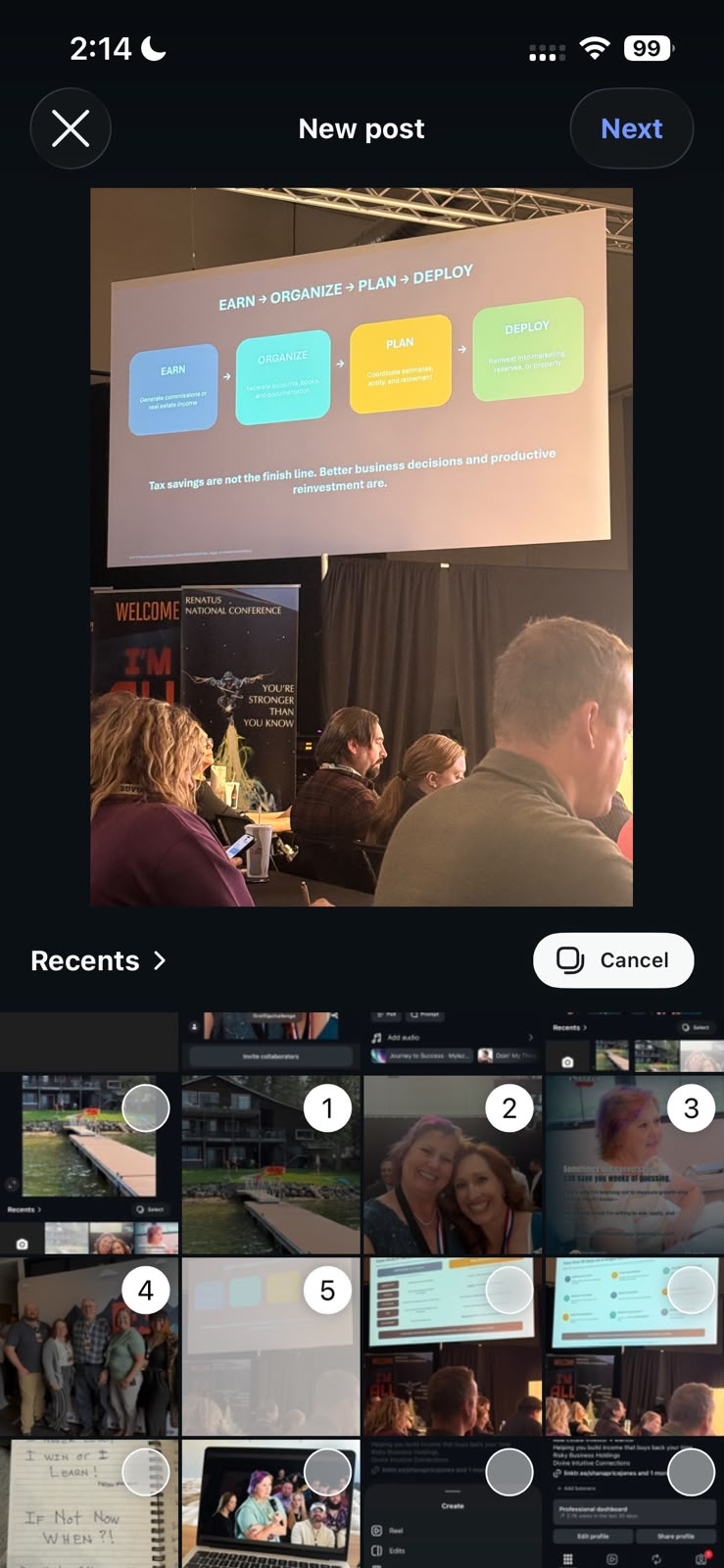
Create an Instagram Story
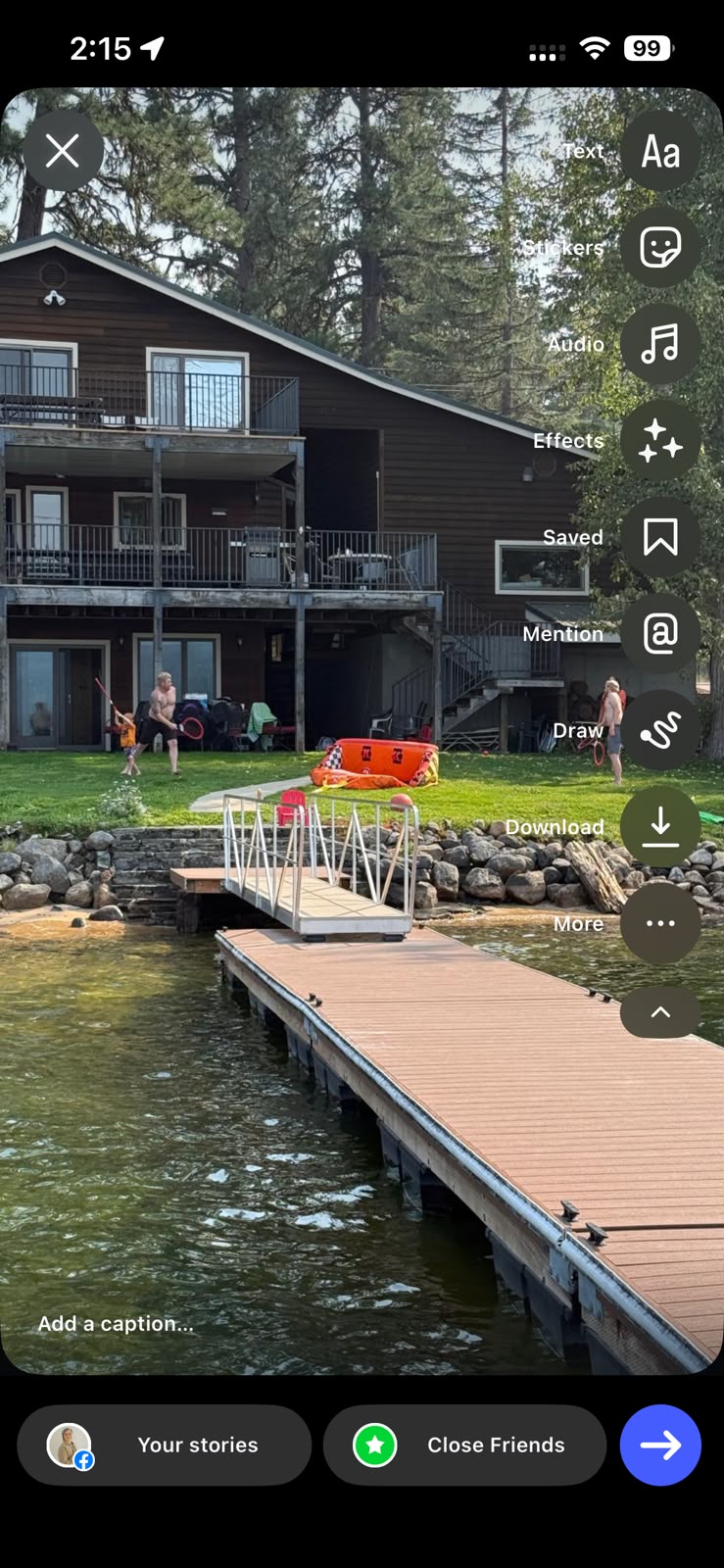
- Tap Your Story or the + button.
- Choose Story.
- Select a photo or video.
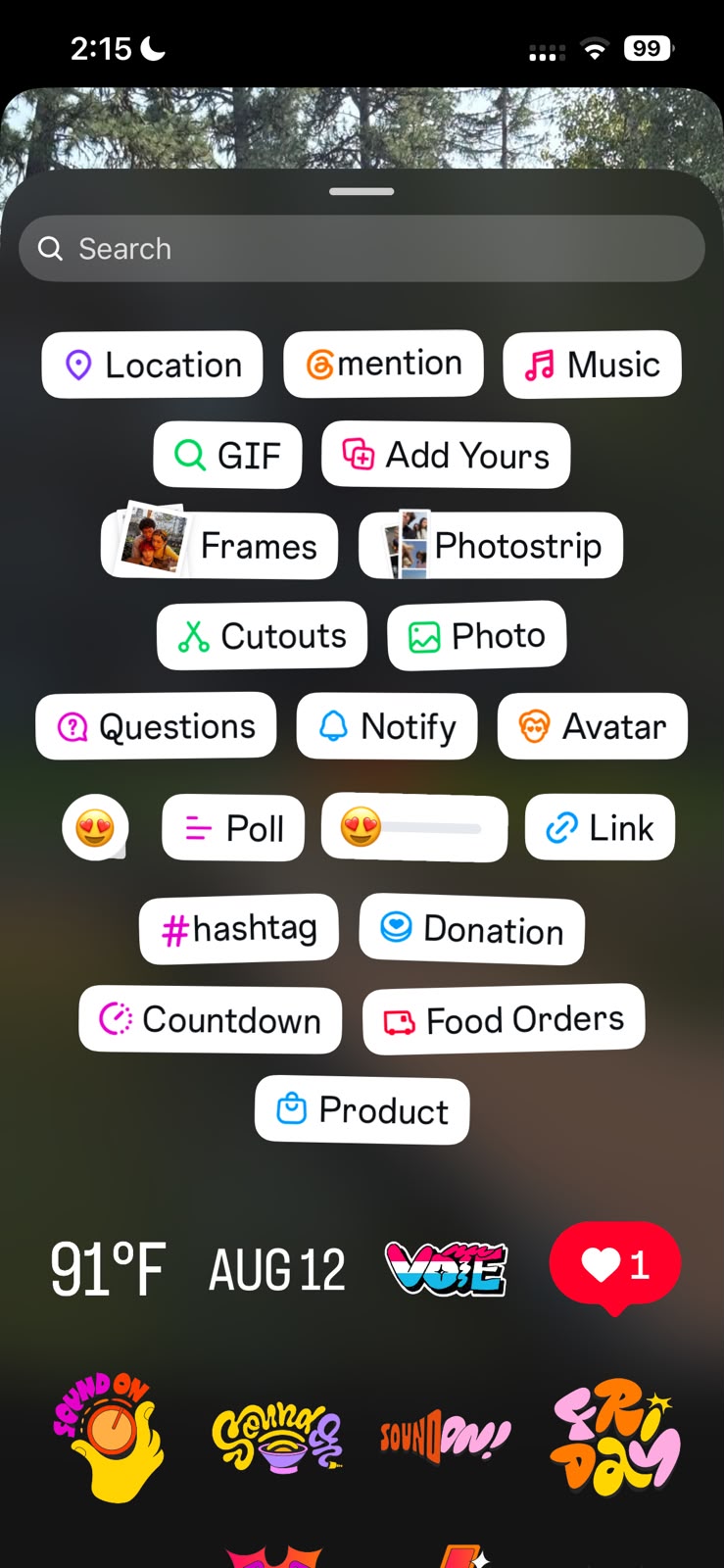
- Add text or a mention if you'd like.
- Tap the share arrow when you're ready.
Stories are designed for quick updates and usually disappear after 24 hours.
Story Editing Tools
Sample Story
Create an Instagram Reel
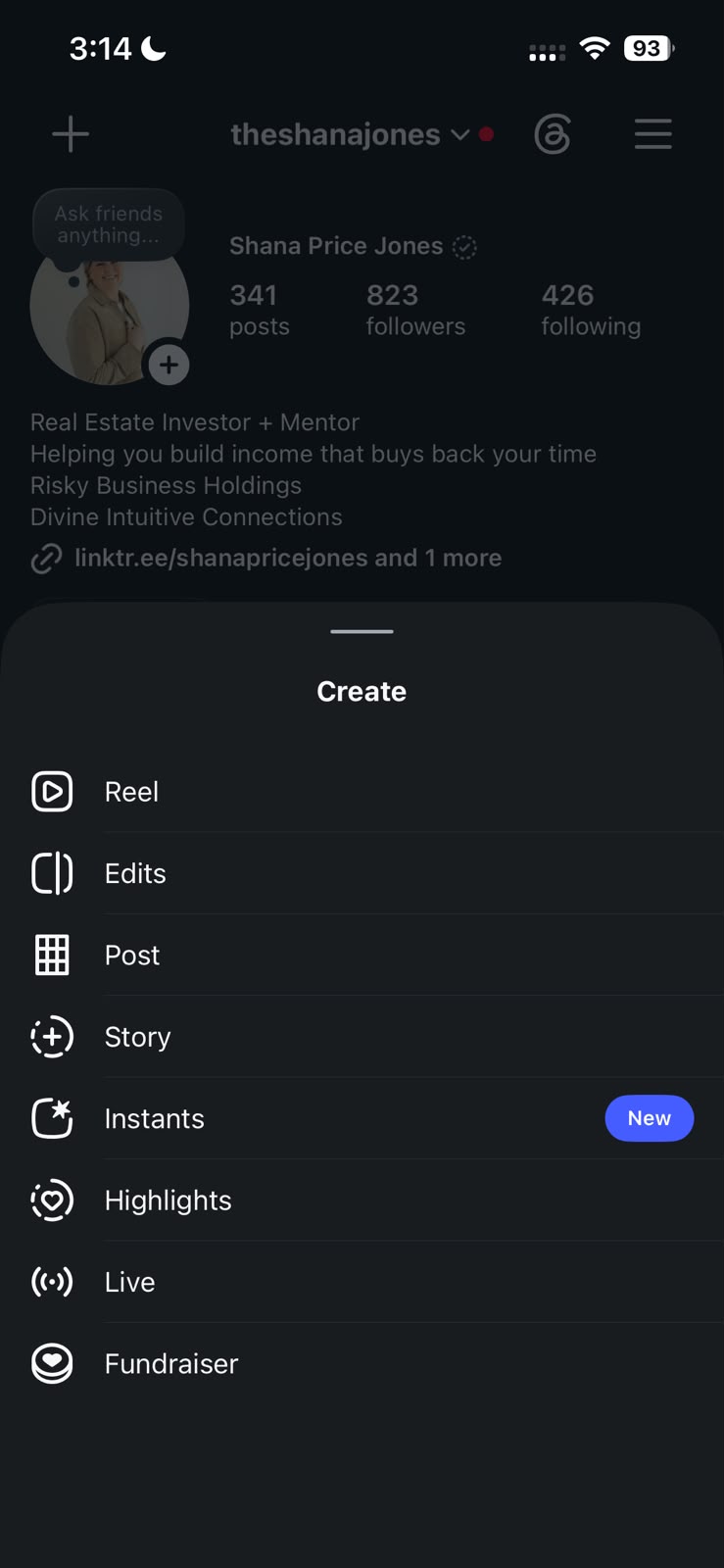
- Tap the + button.
- Choose Reel.
- Select a video from your phone.
- Tap Next.
- Use Instagram's editing tools only if needed.
Choose Reel
Select Your Video
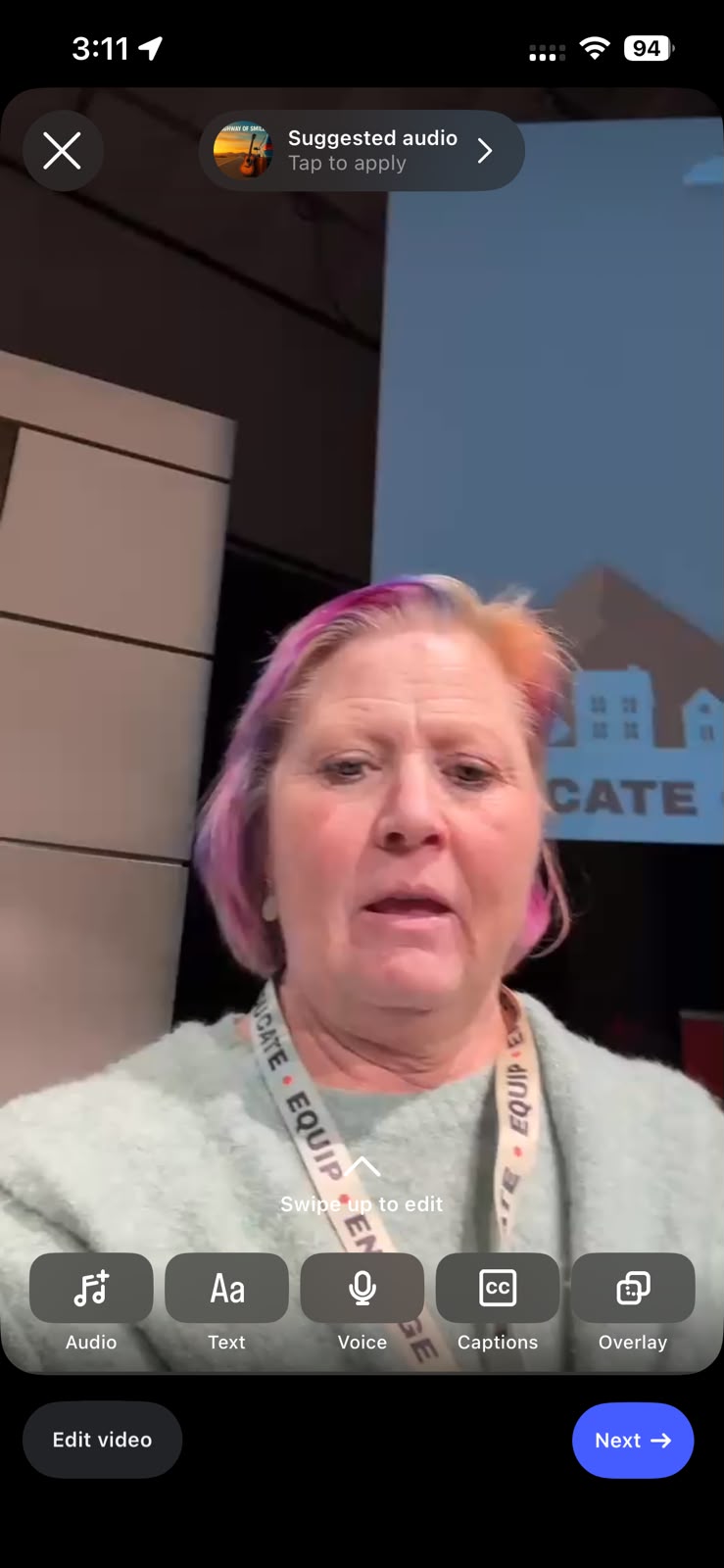
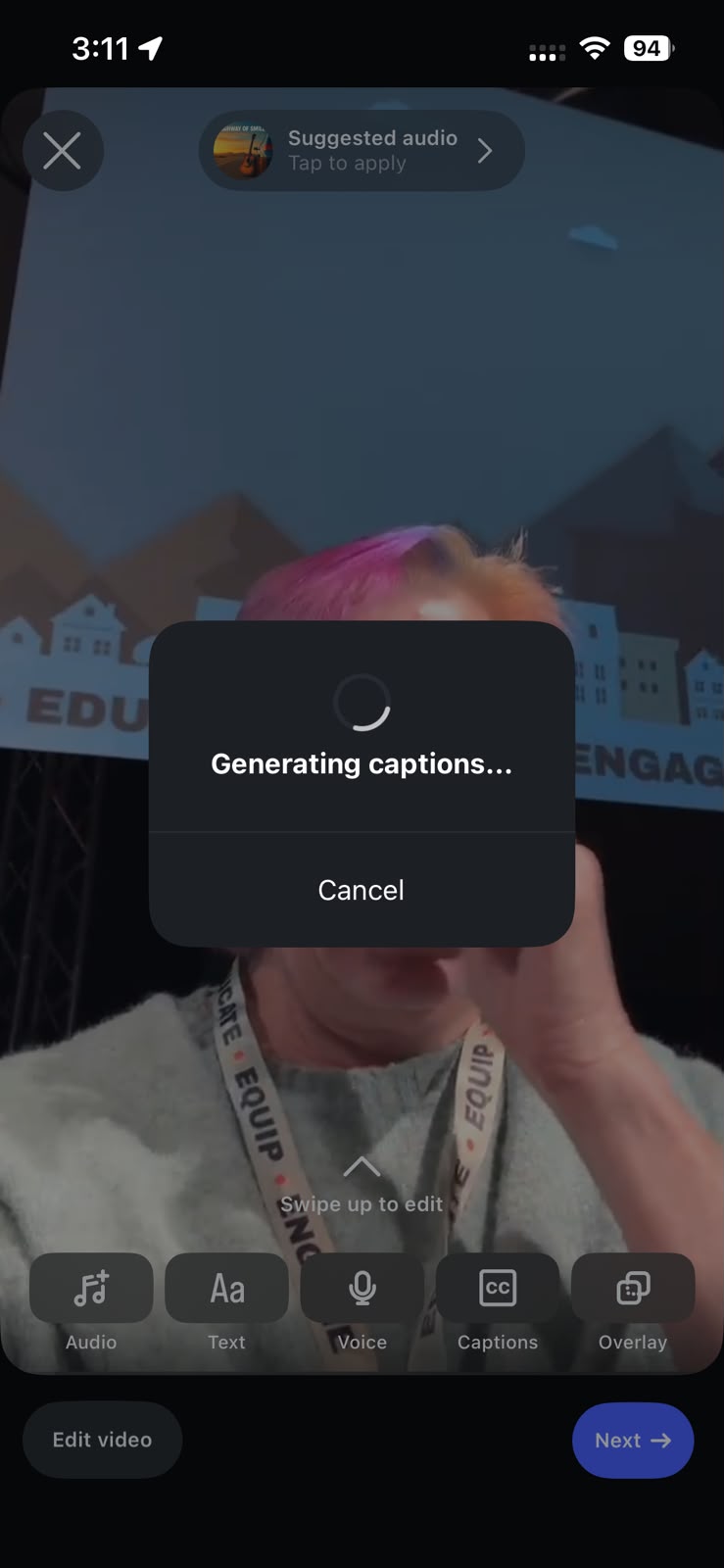
Add and Check Captions
- Find Captions.
- Let Instagram generate the spoken words.
- Review the captions before sharing.
- Correct any mistakes.
Double-check names, First Flip Challenge / ISN names, and real estate terms.
Generating Captions
Before You Share
☐ Photo or video selected
☐ Caption added
☐ Correct accounts tagged
☐ Collaborator invited if needed
☐ Reel captions checked
☐ Ready to Share
Final Post Check
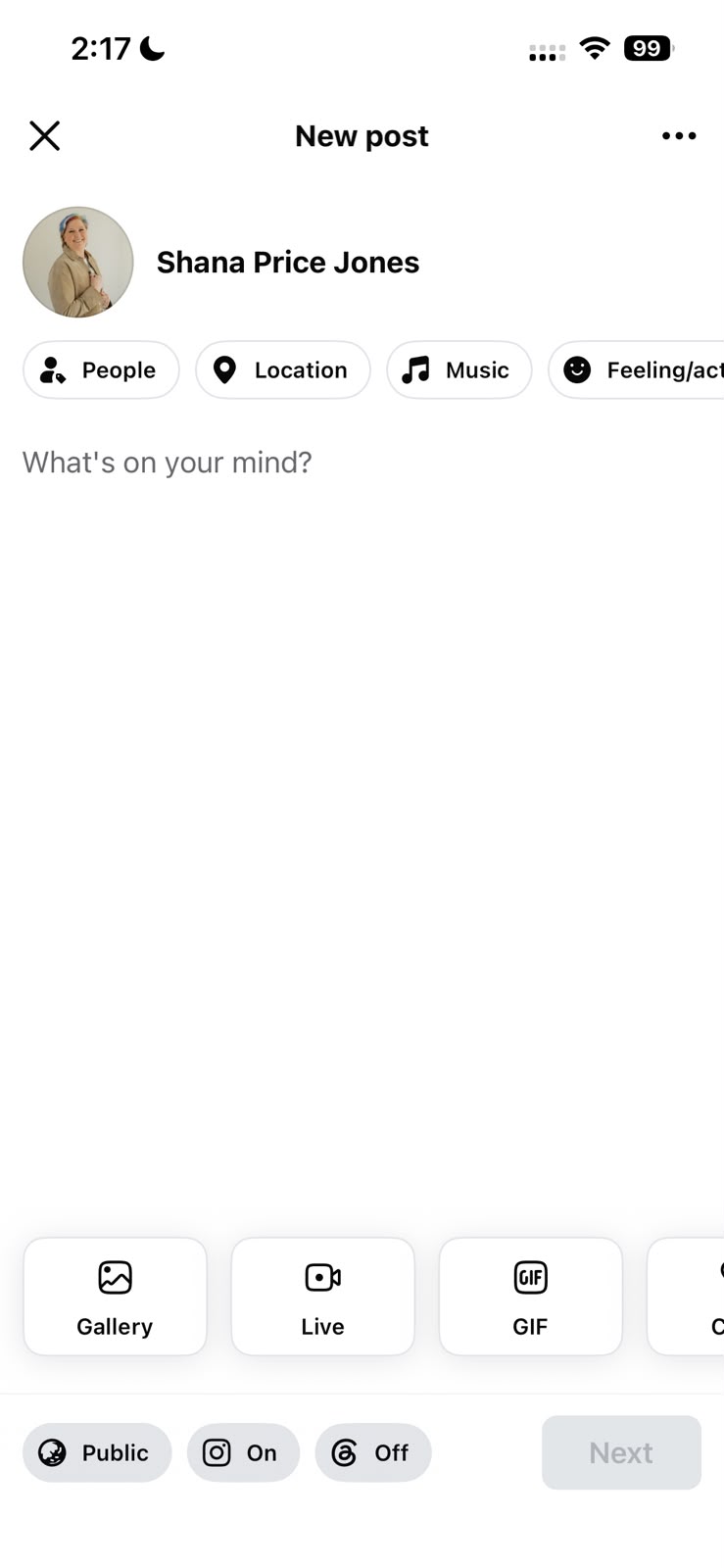
Create a Facebook Post
- Open Facebook.
- Go to your profile.
- Tap What's on your mind?
- Add a photo.
- Add your text.
What's on your mind?
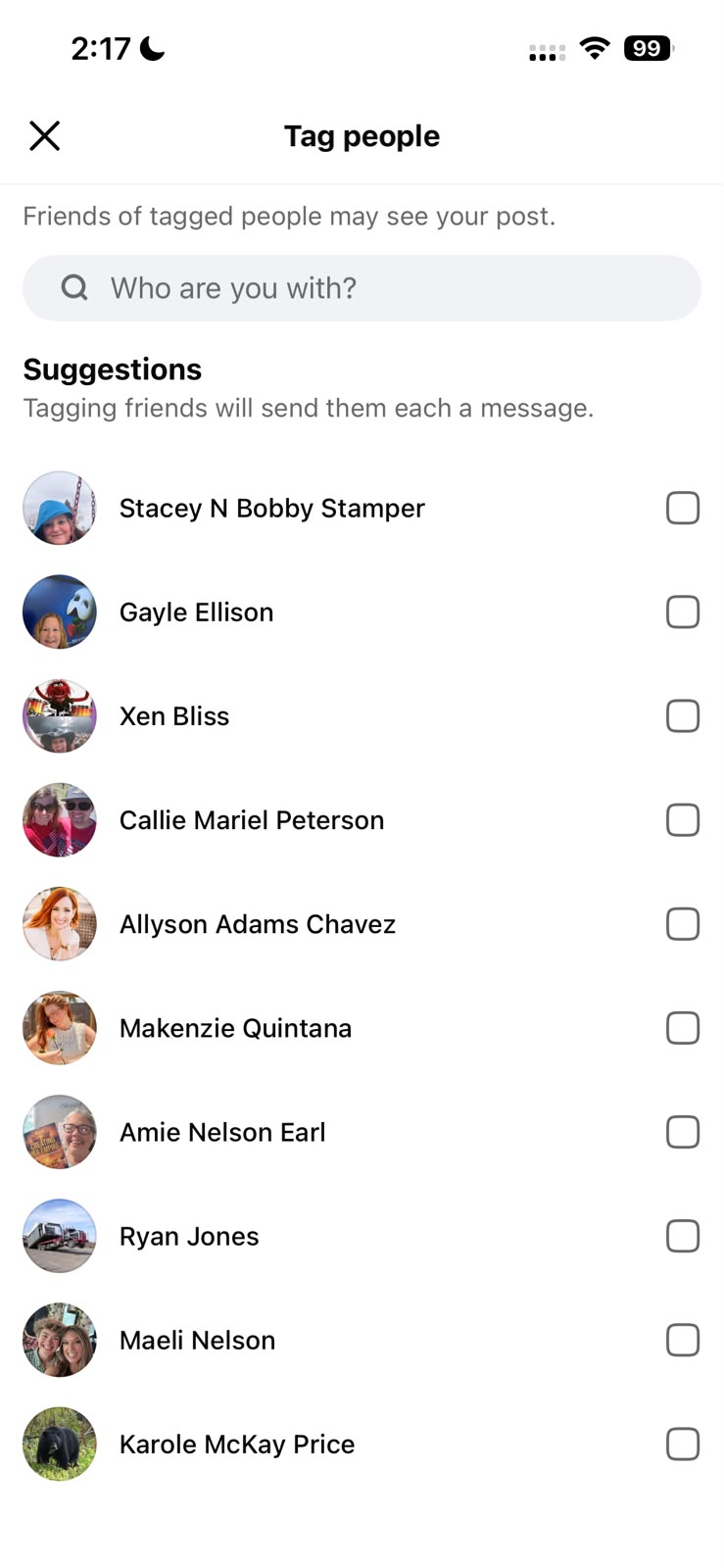
Tag People
- Open your Facebook Post.
- Find the Tag People option.
- Search for the person you want to tag.
- Select the correct person.
Facebook Tagging
Before posting, also check your audience setting so you know who can see the post.
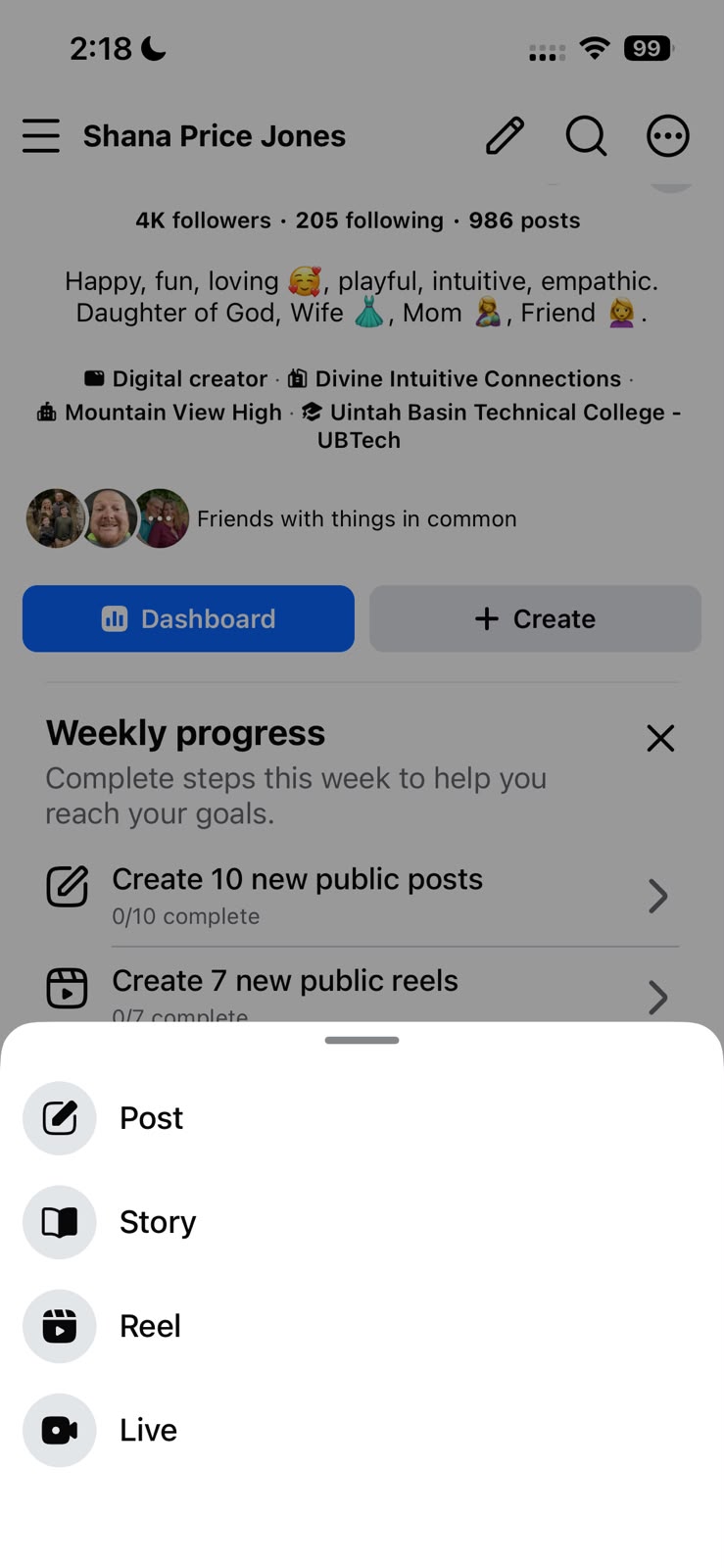
Facebook Posts, Stories and Reels
- Open the Facebook creation options.
- Choose Post for a regular update.
- Choose Story for a quick update.
- Choose Reel for a short video.
Post • Story • Reel
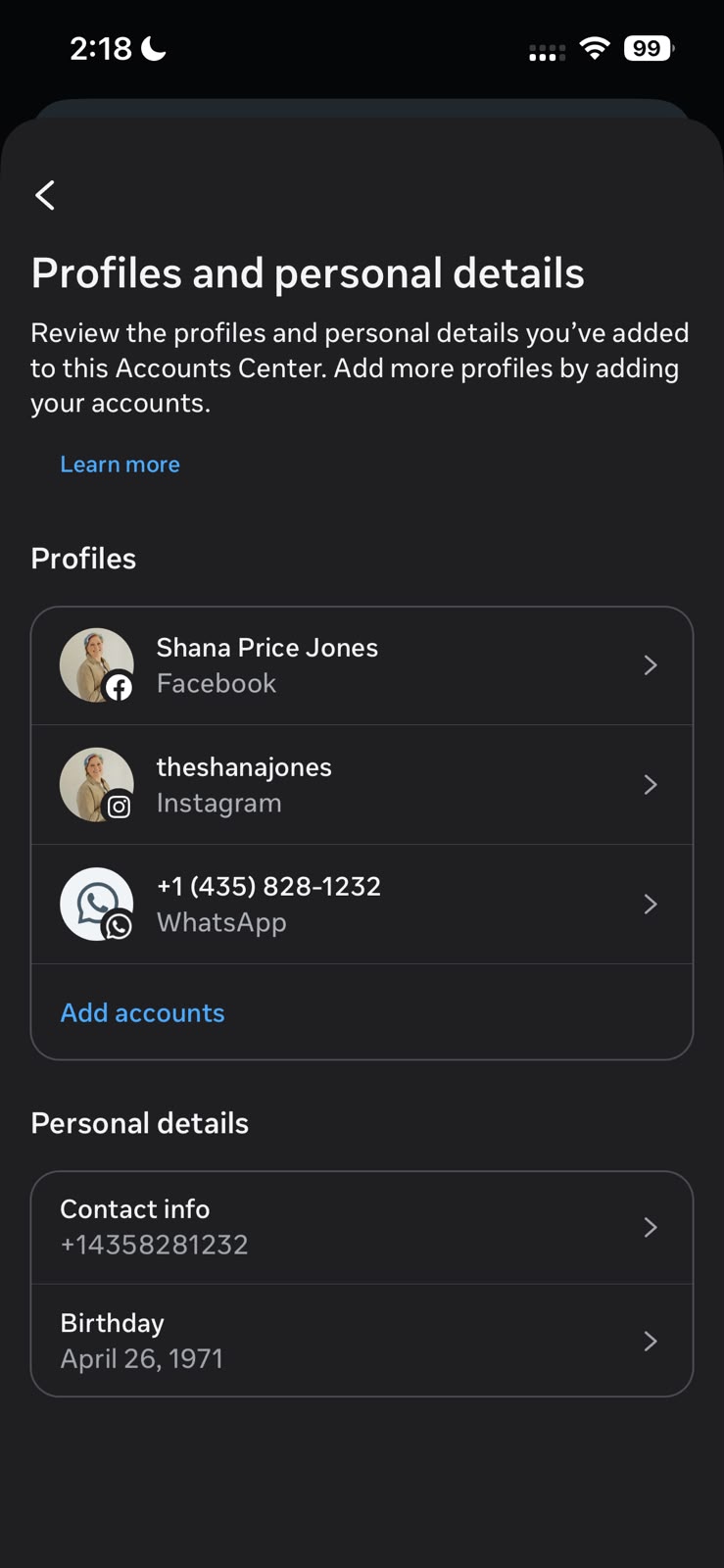
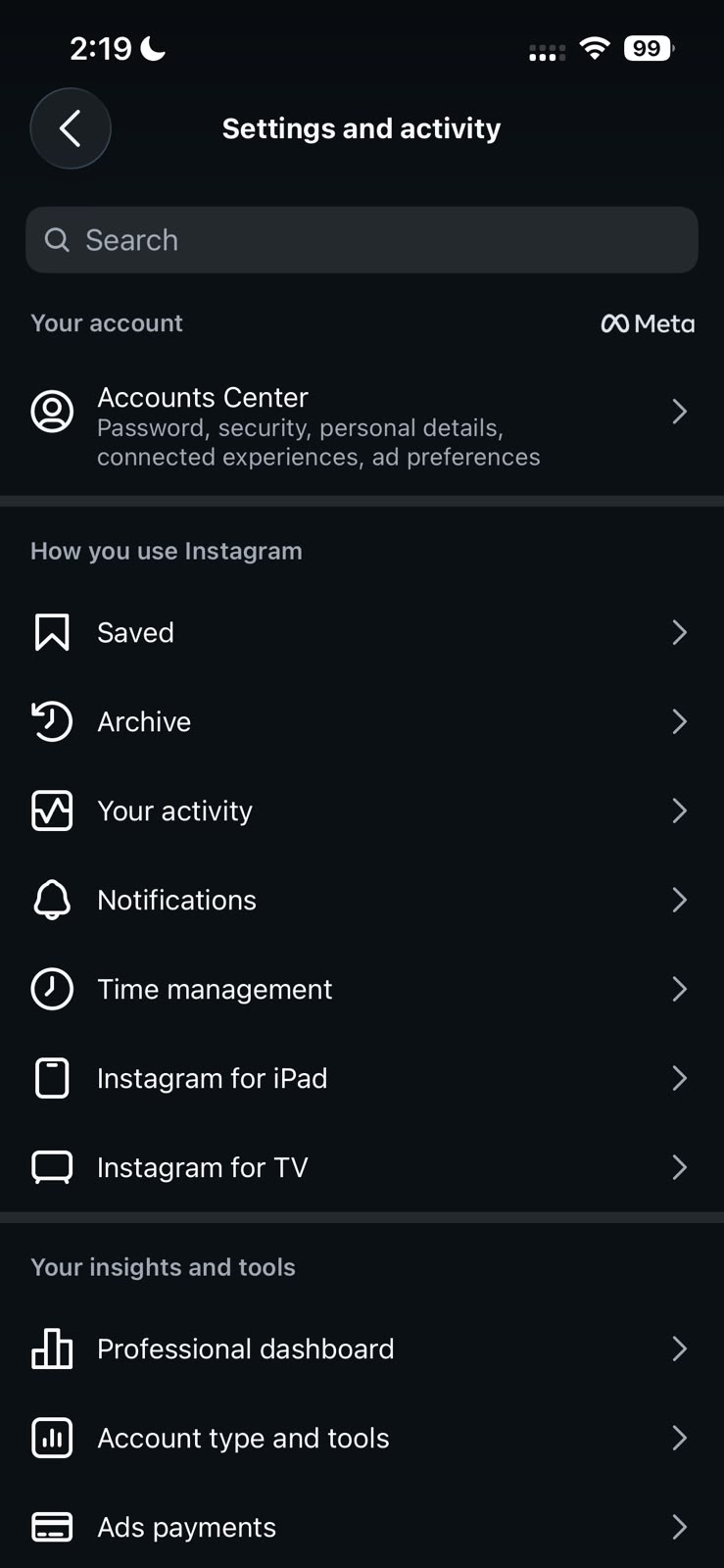
Find Accounts Center
- Open Instagram.
- Go to your profile.
- Open the menu.
- Find and open Accounts Center.
Find Accounts Center
Sharing Across Profiles
- Open Accounts Center.
- Review your connected profiles.
- Find Sharing across profiles.
- Choose the profiles you want to manage.
- Review the sharing options shown on the screen.
Accounts Center / Profile Sharing